
What is RX 2?
RX 2 is iZotope’s audio restoration and repair software suite. They released it as part of their industry-standard software for audio post-production, music production, and forensic audio analysis. In this iZotope RX2 review, we’ll investigate the gigantic bevy of tools on offer.
RX 2 introduces several notable features compared to its predecessor:
Key Capabilities:
- Advanced audio repair tools for removing clicks, crackles, hum, and noise
- Spectral editing interface allowing visual manipulation of audio frequencies
- De-click, de-crackle, and de-hum modules for cleaning up recordings
- Dialogue isolation tools
- Music Rebalance for adjusting levels of individual instruments in mixed audio
- Batch processing for handling multiple files
Common Use Cases:
- Restoring old recordings (vinyl transfers, archival audio)
- Cleaning up dialogue for film and video production
- Removing unwanted background noise from interviews or field recordings
- Fixing recording artifacts and technical issues
- Forensic audio enhancement
To say that IZotope’s RX 2 is a respectable audio restoration suite is a grave understatement. Rather, RX 2 has become one of the most highly regarded speciality software packages available. It targets professional-grade forensic audio repair and restoration directly. And yes, it’s available for both 32 and 64 bit MAC *and PC systems.
RX 2 carries a very competitive price tag, costing approximately half as much as most of its more expensive challengers. — $349 (RRP). You might be able to find this powerful suite priced even lower at online stores such as AudioDeluxe.com or PluginDiscounts.com.
Why Choose RX2?
- Powerful enough for professional mastering/restoration engineers.
- Easy to learn for beginners.
- Work with RX2 in a standalone audio editor, or load many of its modules as independent plugins within your DAW.
- Exceptional De-hiss, De-noise, De-click, De-clip, and Spectral Repair.
- Extensive EQ in both minimum phase and linear phase modes.
- and many more forensic-grade modules.
When iZotope’s ardent admirers extol its forensic and audio repair qualities, they aren’t simply repeating unfounded marketing hype. RX 2 is capable of transforming damaged or poorly captured audio recordings into works of sonic art. In particular, the world’s leading forensic software maker, Cedar Audio Ltd, licenses portions of the Spectral Repair tool. Whether the engineer is:
- transferring vintage recordings to the digital domain
- removing unexpected air conditioner hum from an otherwise perfect take
- helping an investigator clean up a noisy piece of evidence
RX 2 is the absolute finest audio restoration suite available for under a $grand.
IZotope first started solving many cold case audio mysteries in 2008 with their initial release of RX. The powerful restoration suite took the industry by complete surprise and upset the status quo with its prowess and exemplary performance. Until that time, Waves Restoration Suite and the Algorithmix line of pro audio products dominated the field. Both Waves’ and Algorithmix’s solutions were exorbitantly expensive.
The original RX was very impressive. Since then, IZotope has continued to optimize the performance and processing speed of their RX suite. Today, RX 2 is more refined and powerful than ever. At its present build, of 2.10.x, this suite of audio correction and restoration software is nothing short of astounding.
I have no doubt that IZotope has fully supported and clearly proven its own claims.
“iZotope RX™ 2 is the most complete audio repair toolkit on the market, enabling you to remove noise, hiss, buzz and hum, eliminate clicks and crackle, restore clipped audio, visually select and suppress unwanted sounds, resynthesize missing audio, and much more.“
Installation and Authorization
The installer weighs in at 118 MB, and IZotope’s servers deliver it at super speedy download rates. Technically, the installer puts RX 2 Advanced on your system, but you can’t access the high‑end, more expensive features until you unlock them by purchasing a $1200 RX 2 Advanced license. This is a smart idea. IZotope needs to only maintain one installer. This also makes it easy for a customer to upgrade without having to download additional content.
Without authorization, the system gives the prospective buyer a fully functioning 10‑day trial version, but it blocks saving edited files and running batch processing.The software installs quickly and easily with minimum muss n’ fuss.
Hi, you! If you like these kinds of reviews,
be sure to subscribe.
RX 2 reaches full functionality as soon as you authorize it by either an iLok dongle or a challenge/response method. In this regard, the obvious advantage of iLok authorization is that you can use your purchased product on any Mac or PC, as long as you keep the authorizing iLok safe and in good working order.
Visuals
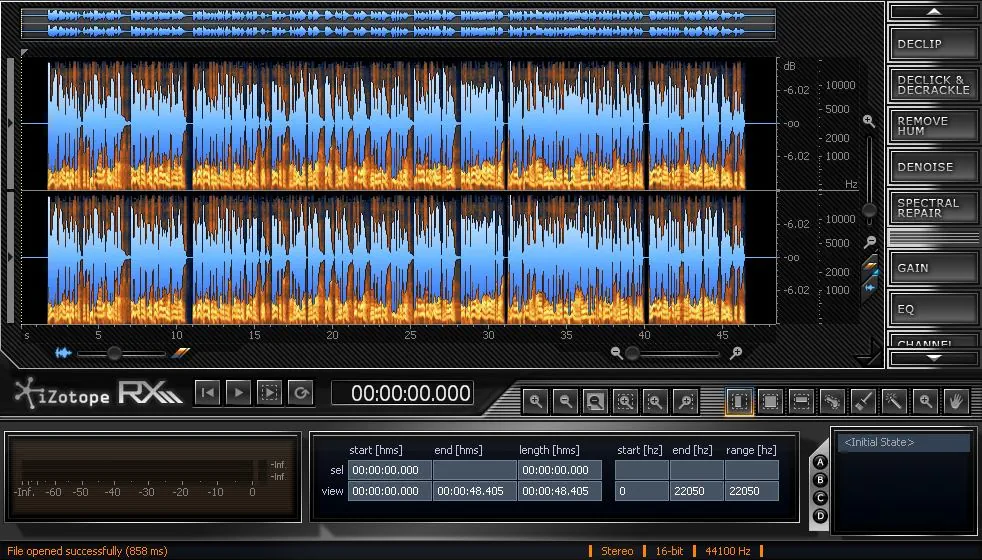
First appearances can communicate a great deal about a subject. RX 2 summarily presents itself as a serious, professional software tool. As a result, it would not look the least bit out of place in a science or forensics lab.
The application defaults to a minimum screen size of 980px wide by 560 pixels high. Typeface and controls are easy to read. Dark charcoal, black, and navy background elements make it easy to navigate the well‑placed buttons and controls. The terminal-styled typeface is clearly legible with a decidedly professional-looking motif.
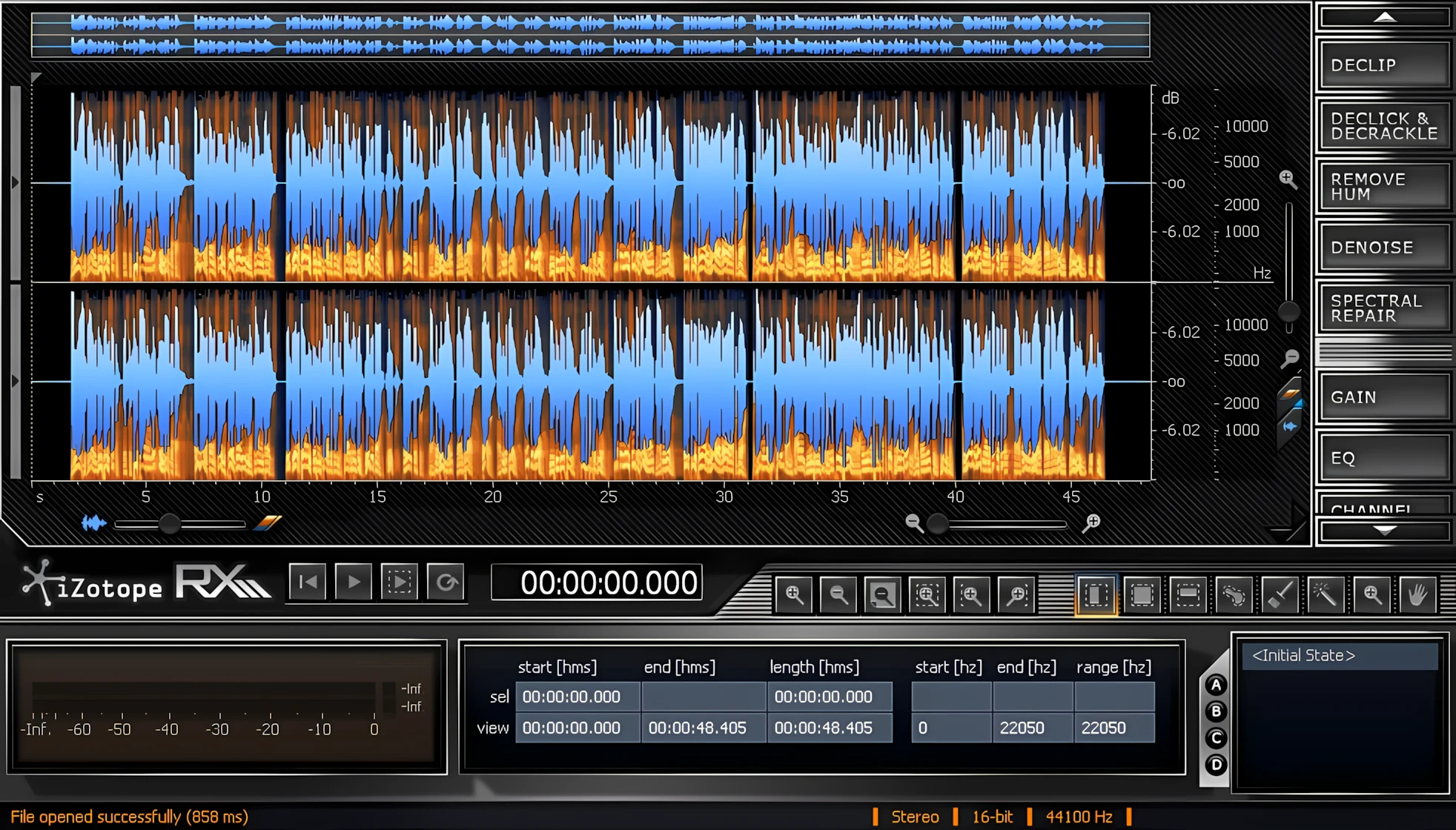
Along the top of the Waveform Display, an overview strip lets the user quickly move to any region of a loaded audio file. This makes for easy mouse click/drag action.
When you load an audio file into RX 2, the software displays the audio in the “Spectrogram/Waveform Display.” This is the primary area of the interface, and where you’ll be working most of the time. The software visually represents the audio file as a bright blue waveform superimposed against the orange and blue-toned spectrogram.
Mouse scrolling will zoom or shrink the waveform, facilitating precise, surgical selections. You can also do this by using the zooming tools positioned beneath the Waveform Display.
Getting Familiar With RX 2
RX 2 is a “visual-selection” based audio environment. Its unique spectral design makes for easy, accurate recognition and selection of problematic areas of audio. The spectrogram lets you see at a glance broadband, electrical and intermittent noise. In addition, it allows you to isolate said audio problems easily by sight.
You can change Spectrogram preferences—such as color map, frequency scale, and resolution—in the relevant Options dialog. A user accesses this dialog by clicking the “View | Spectrogram Settings” menu.
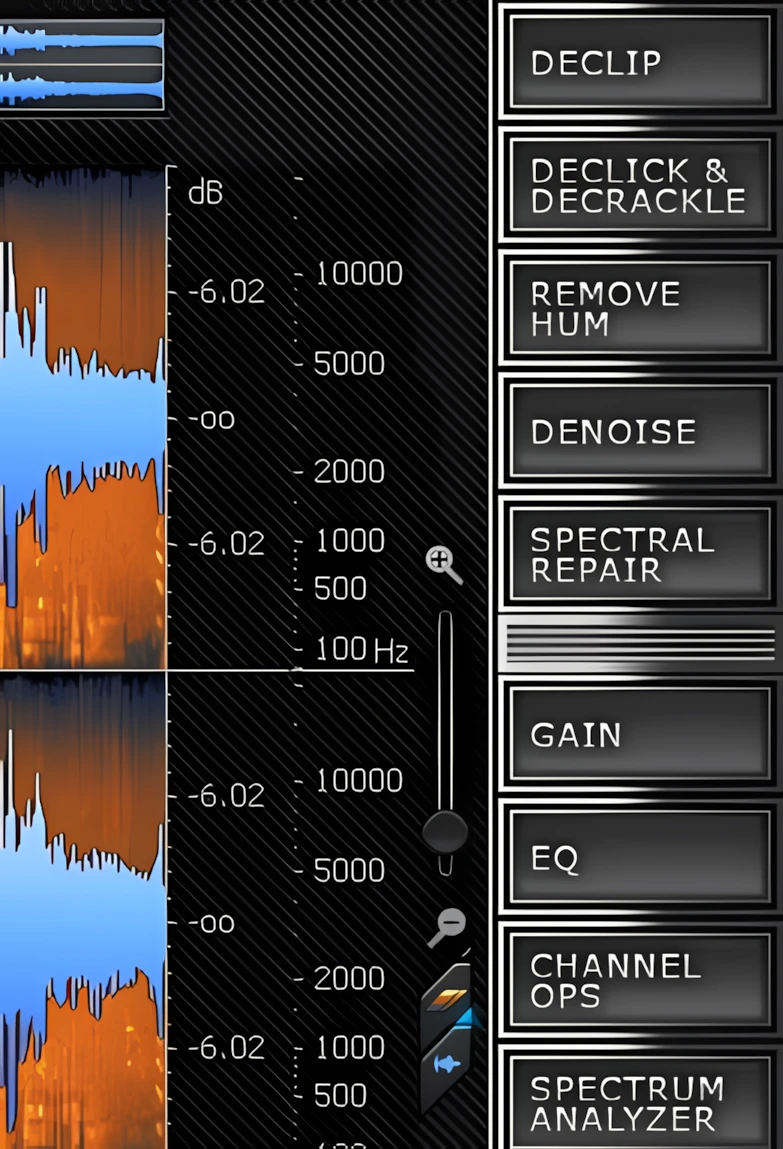
You access the individual processing modules by clicking their respective buttons. These are located along the rightmost side of the application window (also available from the ‘Process’ menu list). Each module opens in a floating mini-window. Afterward, you can place them anywhere on your desktop to keep the primary workspace tidy and uncluttered.
This floating design is especially appreciable in an extended desktop or multi-monitor scenario. You can easily configure each module’s full range of user-adjustable parameters with sliders or by entering values manually.
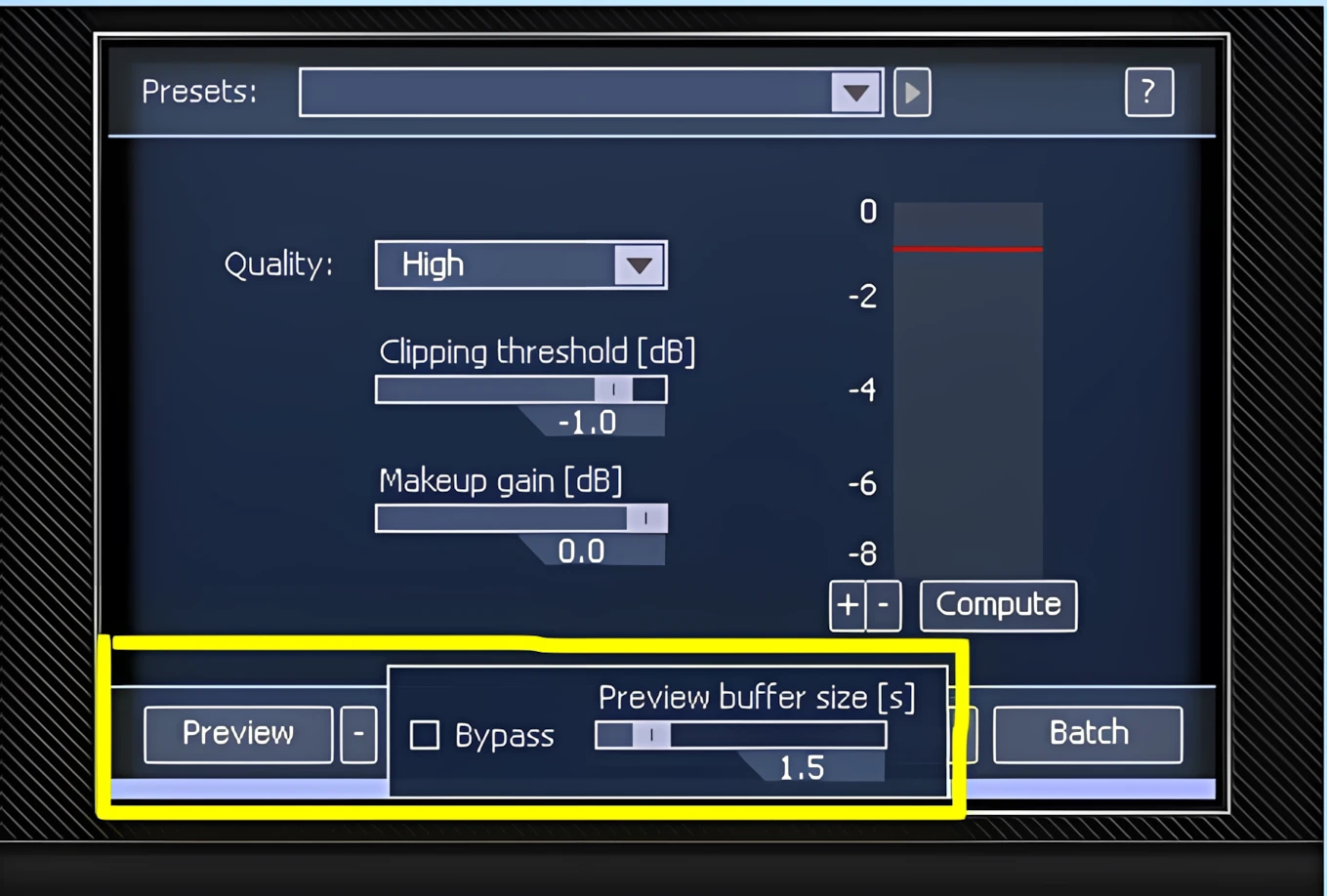
It’s also worth noting that you can preview the effect of each module’s current settings in real time—essentially “pre‑hearing” the results before you commit to processing. You simply click on the “Preview” button. Each Preview button has a small “+” to the right of it which exposes a corresponding mini panel. Lastly, you can engage instant bypass for quick, on‑the‑fly comparisons. Finally, you can also adjust the length of the preview buffer to suit your workflow.
Choose Spectogram or Waveform Display:
There’s a waveform opacity slider located in the lower-left corner of the Spectrogram/Waveform display. This grants the user control over the amount of waveform opacity. Furthest left removes the spectrogram display. Furthest right reveals only the spectrogram.
The default middle position displays both attributes equally. In particular, this feature can come in quite handy when you need to focus only on the stronger portions of audio or frequency energy.
On the adjacent right side, there is the zoom slider. Alternatively, you can use your mouse wheel to zoom in/out vertically and horizontally. The slider allows for quick zooming, but it lacks the smoothness and accuracy of mouse wheel adjustments.
Directly beneath the Waveform Display, you will see tool buttons and a nice, large, time-position display. This button row starts with a basic transport section that includes Rewind, Play, Play Selection, and Loop controls. Next, we find the easy-to-see time-position display rendering the current playback position in precise Hour:Minute:Second:Milisecond format.
Zoom and Selection Tools:
The next group of buttons make up the “Zooming Tools” toolbar. These are: Zoom In, Zoom Out, Zoom Out Full, Zoom Selection, Zoom to Left Edge, and finally, Zoom to Right Edge.
The third set of buttons belongs to the “Selection” toolbar. The number of selection modes provided here extends well beyond the typical selection tools found in standard audio editors. RX 2 provides tools to select typical time selections, segments of frequency range within a time selection, and frequency range alone.
Next, the latter is a vertical selection method, as compared to typical side-to-side waveform selection. The ‘Lasso’ facilitates freehand selection of offending background noises. Thirdly, the adjustable ‘Brush Selection’ tool lets you draw any selection you want using both time and frequency. Lastly, there is also the ‘Magic Wand’ selection tool that intelligently selects adjoining harmonics for any selected segment.
Holding your mouse cursor over any one of the user-adjustable sliders or buttons will display a help tip describing that particular controls purpose. There are also many computer keyboard operators (hotkeys) that can be used to activate the various functions. For example, up/down arrow keys will “zoom” the waveform in/out. The “R” key selects the Time-Frequency Selection Tool, whereas the “T” key selects the standard Time Selection Tool. The popup tooltips accompanying each control include Hotkey information per element.
Metering:
Completing this streamlined, intuitive work space are three panels located along the bottom of the RX 2 GUI. From left to right, you get a smooth, real-time meter that displays both average and peak values. Next to the metering panel, we have Selection and View Ranges area.
There are 12 small, light-grey boxes in this area that display segment length, selection length, selection start and end times. Much like the time-position display, the values are shown precisely in 00:00:00:00 format. Frequency selections are clearly indicated as well, including upper and lower limits, and more. Moreover, you can also enter values manually, which is especially useful for removing extremely narrow frequency bands or selectively attenuating a specific range.
History and Undo:
The ‘History’ panel puts the finishing touch on the interface and promotes fast, efficient workflow. Specifically, this small window, located at the bottom right, lets you view a timeline of all changes made and non-destructively roll a processed clip back to any earlier state. In addition, a user can assign temporary A/B/C/D presets to items in the undo history for quick comparisons.
From the Windows or Mac menu, you can load files, launch modules, customize preferences, and access help resources and product documentation.
Loading Files:
Five common audio files types can be loaded by clicking File | Open. Non WAV types will first be decoded as temporary 32 bit (float) WAVs. RX 2 natively works with WAV, Broadcast WAV, AIFF, MP3, and WMA formats. The automatic importation and conversion of audio tracks from several common video file types is another fine IZotope feature. RX 2 will import from AVI, MPEG, WMV, DV, MOV and M4V. The resultant audio edits can be saved in either WAV or AIFF format.
Next up, let’s deep dive into RX2’s forensics and audio dissection capabilities.

Leave a Reply