
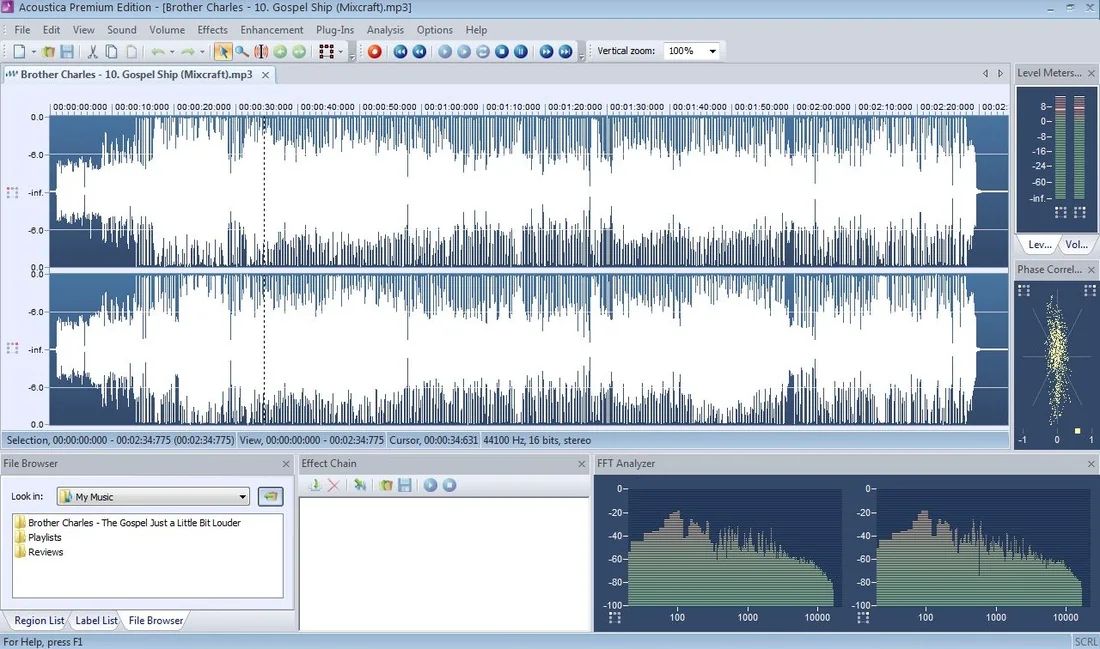
What is Acon Digital Acoustica 5 Premium?
Acoustica 5 Premium is a professional audio editing and processing software suite. A5 Premium is powerful and fast, plus it’s loaded with premium audio restoration and mastering tools. In this Acon Digital Acoustica 5 Premium review, we’ll check out all that it has to offer. Including all of its premium tools.
Key Features:
- Multi-track editing (stereo up to 8 channels)
- Sample rates up to 384 kHz
- 32-bit PCM/float processing
- Broad native file format support
- Loudness meter and spectrum analyzer
- Audio restoration modules (noise reduction, de-clicking, de-humming)
- Mastering processors
- LP & Tape transfer wizards
- Real-time peak, hold, and RMS analyzers
- Pro-grade (polyphonic) time stretching & pitch shifting
- High quality EQ, Reverb, Limiter, Dynamics, Multi-tap Delay, and Modulation effects (can be used in 3rd party DAW/Host)
- Test signal generator (white, pink, brown noise & sine)
- Ultra-fast performance engine
! WARNING !
This article is a detailed, nine innings long, exhaustive review of one of Europe’s most underrated audio editing suites. If you’re an antsy, 5000-words-or-less fan, then you might not have the endurance for this in-depth article. Jus’ sayin’.
If you’re in it for the joy of the audio game though, you’re gonna LOVE IT!
Settle in with your favorite libation.
Ready?
Ok, let’s go!
Introduction:
Sound Forge Pro, Sound Forge Audio Studio, Adobe Audition, Steinberg Wavelab, Wavelab Elements, Audacity, Waveosaur, Gold Wave: Which one is best? Which one should you buy? Which one will you ‘gel’ with?
Firstly, the upper tier of these products requires a flush bank account and a commitment to pro-calibre audio editing. Secondly, the lower range of available audio editors provides decent audio-editing features and will appease novices needing to make simple changes. A freeware or inexpensive audio editor will suffice if the user isn’t looking for perfect results, or doesn’t need premium extras.

Consider a third scenario . . .
What if you need professional features, but can’t quite bite off the ‘professional’ costs associated with the upper range audio-editing software packages? You take a look in the direction of team Norway.
Since 1987, Acon Digital has been diligently refining their powerful, affordable product-line. Heading up the roster is team captain, Acoustica 5 Premium.
Huge tool-chest, moderate cost:
Acoustica 5 Premium bears an MSRP of only $119 (USD). It is entirely plausible that Acon Digital’s A5 Premium is poised to win gold as THE BEST audio editing software package within its price range. Competing products (in this price range) DO NOT offer the extensive, powerful features that Acoustica 5 Premium provides.
Hi, you! If you like these kinds of reviews,
be sure to subscribe.
Acoustica 5 Premium includes the capable “StudioClean” restoration bundle. What’s more, you can put these powerful VST plug-ins into play within another DAW or host on your system.
Acoustica 5 Premium is FAST and POWERFUL. This muscular audio champion is laden with an abundant, BEST-IN-CLASS feature-set!
It is also worthy of mention that Premium 5’s little $39 brother, Acoustica 5 Standard, is quite robust as well. It is comparable to Sony Sound Forge Audio Studio or Wave Lab Elements. However, this article will be focusing on Acon Digital’s worthy flagship, Acoustica 5 Premium.
Whew! It’s Fast!
Since the Acon Digital Acoustica 5 requirements are so conservative, the application is blazingly quick on most nearly ANY Windows PC. The software’s base system requirements are as low as a single core Pentium IV!
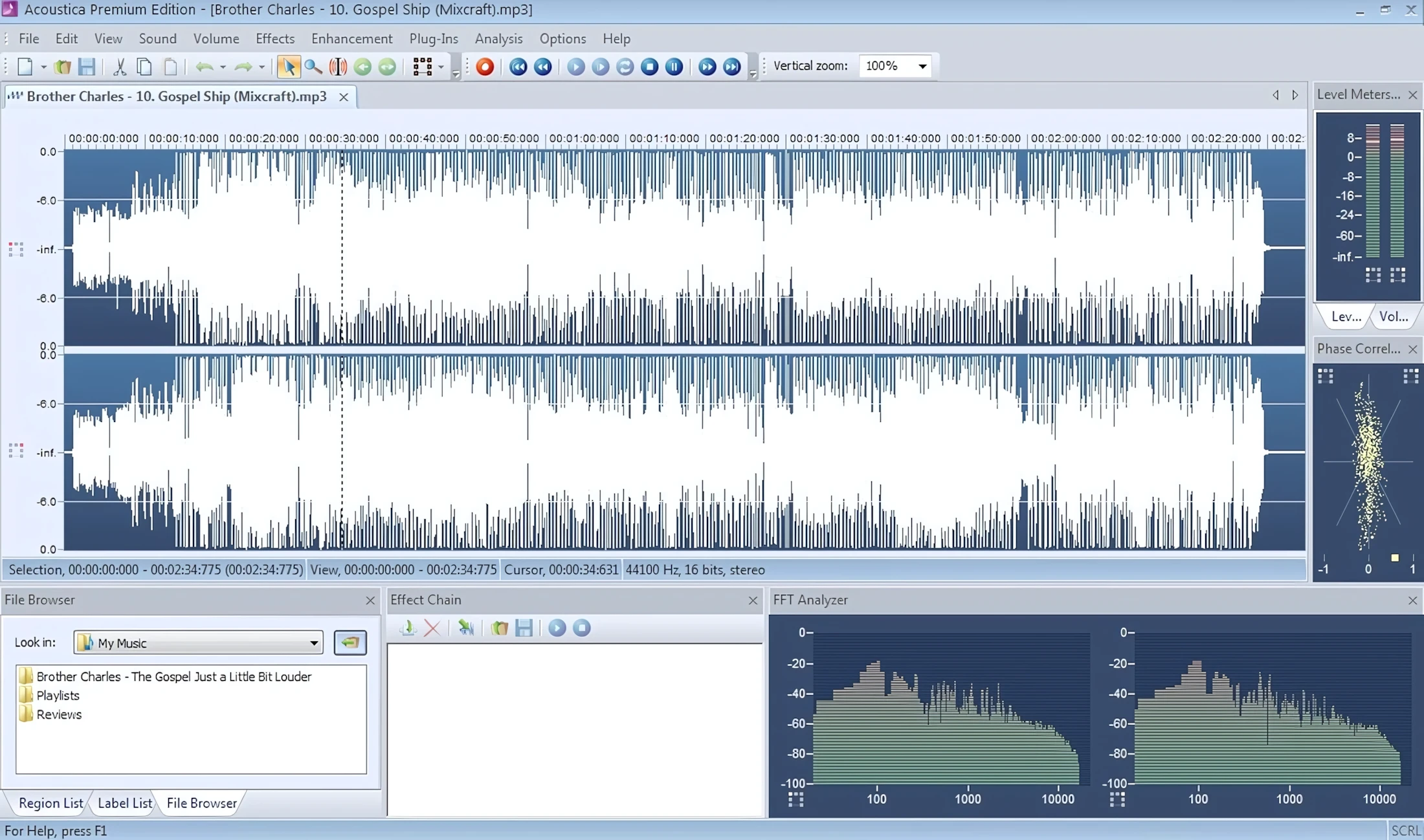
This software is currently only provided in 32 bit Windows format. I use it on a 64 bit Windows 7 PC with incredible ease and have never once experienced any application instability.
Installation and Setup:
Everything about Acon Digital’s software is FAST and efficient; including the simple, intuitive installer. On the six year old dual-core laptop that I used to bench-test this sweetheart of audio app, it installed in about a minute. No exaggeration – it only took about one minute.
I had some experience with the FREE, basic version some time before and I was impressed with it. But, this flagship Premium version is an absolute treasure trove of audio editing goodness. The downloaded installer is only a paltry 10MB in size!
Near the end of the installation process, a dialogue box pops up where you’ll enter your username, company name (optional), and serial code. The wonderful news is (DRUM ROLL, PLEASE) . . . it relies on good old-fashioned serial number protection. No dangling dongle or pain-in-the-noodle online authorization bother.
Visuals and Interface:
Programmers will recognize the DELPHI/Pascal-styled adornments and motif of this application’s GUI. Many, if not most, audio software applications and plug-ins are coded in C++. For good reason; C++ is fast, low-level and extensible.
However, the DELPHI programming environment is coming up the home stretch and quickly and sliding into home. In some cases, DELPHI is even faster than C++. Borland’s DELPHI GUI component libraries are blazingly fast and responsive. Because of this, Acoustica 5 Premium performs like a rocket!
Ok, now that we have the geek speak outta the way, what can this sinewy, Norwegian powerhouse offer us visually?
Quite a lot, frankly. Keep in mind though, If you’re looking for bloated, pretty graphics, you ain’t gonna find them in this bull pen. Acoustica Prem 5 is about power and speed; not fluff n’ cutesy-wutesy pictures.
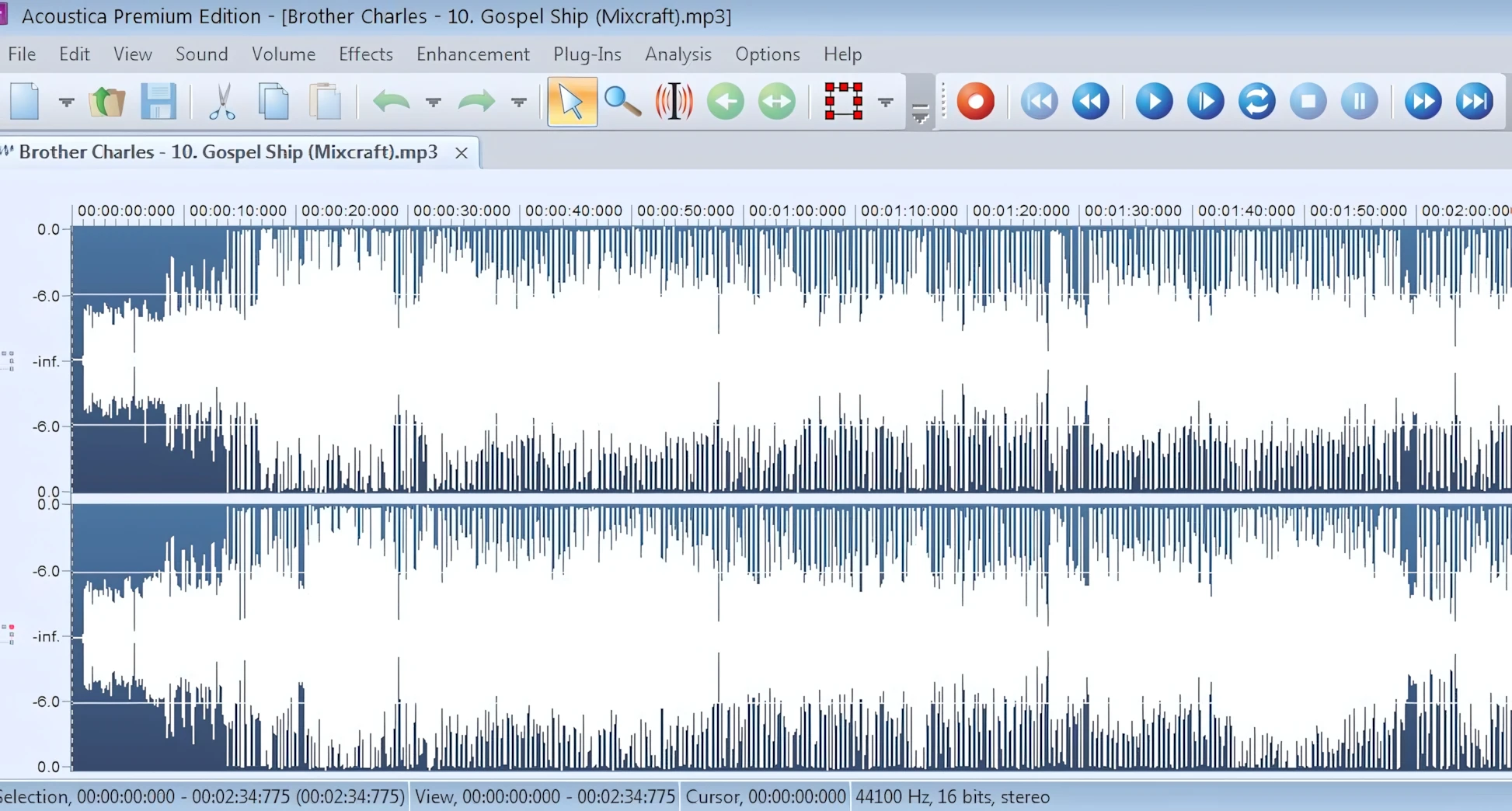
Don’t get me wrong, Kids, A5 has a cool, stream-lined interface that’s easy to navigate and attractive in a minimalist kind of way. The blue-toned GUI is soothing on the eye-balls and won’t require you to spring for a new pair of Ray-Ban shades.
Subtle, mouse-over highlighting effects give you a clear indication of where your mouse cursor is. A popup description of what each icon does is also seen while hovering the mouse cursor over the various toolbar elements.
Toolbars:
The default toolbar icons are quite small on large, high res monitors. Fortunately, the icon size can be made larger and still looks great.

There is a total of seven toolbars, if you prefer toolbar buttons over menu navigation. These are:
- Standard Toolbar
- Transport Toolbar
- Vertical Zoom Toolbar
- Volume Toolbar
- Effects Toolbar
- Enhancement Toolbar
- Channel Toolbar
Menus:
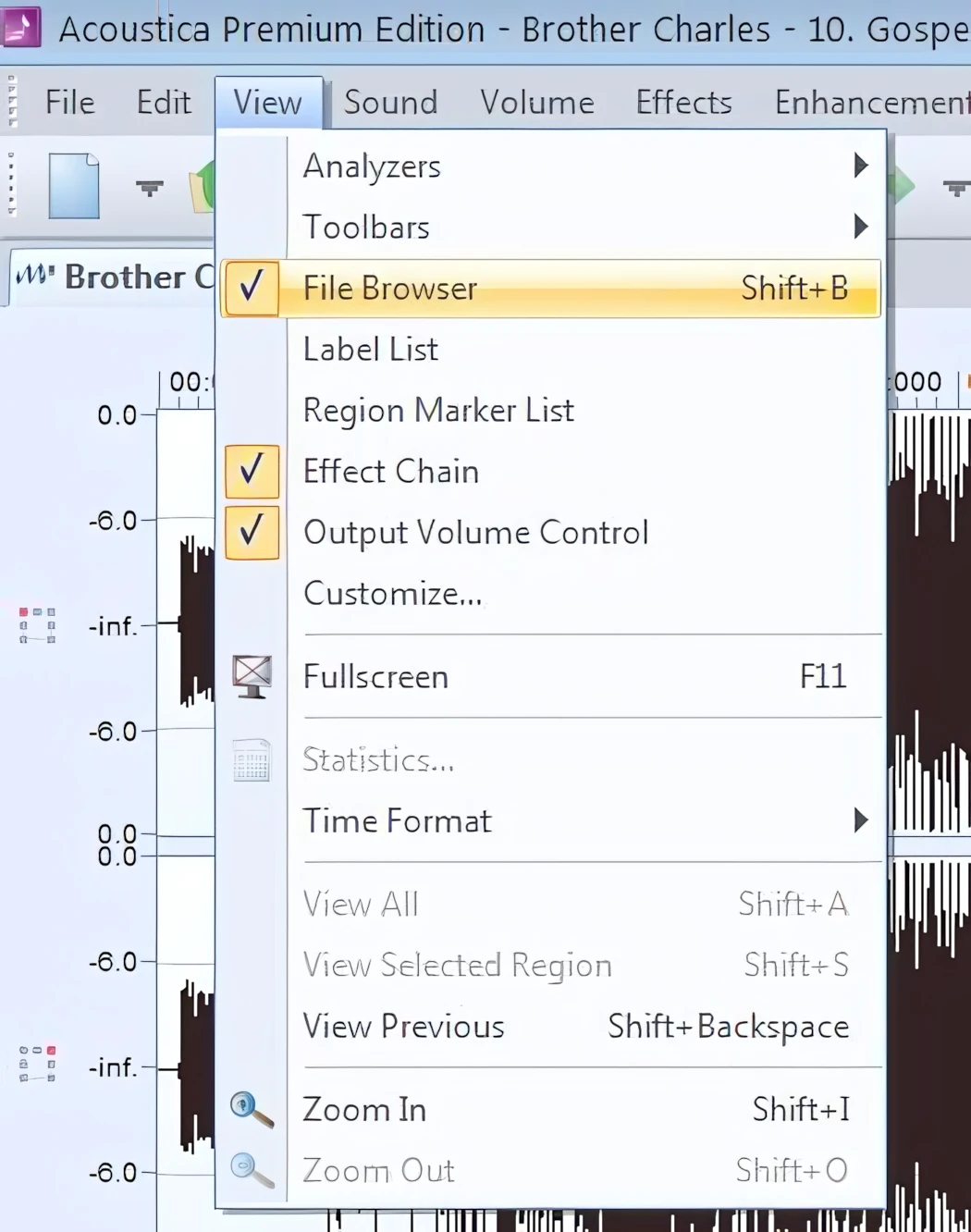
The Office 2003-style menus are fast — but of course they are! This application was coded in DELPHI. Once you get familiar with Acoustica Prem 5, you can fairly fly through the menus without ever worrying about the menu actions dragging along sluggishly.
Similar to Wavelab 7, this application uses a tabbed interface. This makes it a breeze to quickly jump from one loaded audio file to another, and comes in very handy when cutting, copying, pasting, and etcetera.
Waveform Window:
Naturally, the main element of the audio editor’s interface is the “waveform” window. Acoustica Prem 5 has a uniqueness about it, yet bears enough familiarity that it’s plenty intuitive for anyone who has ever worked with any similar product. Easy mouse wheel scrolling “zooms” the view allowing for precise, surgical editing. Roll the mouse wheel in reverse and the zoom factor is decreased (Shift+I, Shift+O keyboard short-cuts provide the same functionality.)
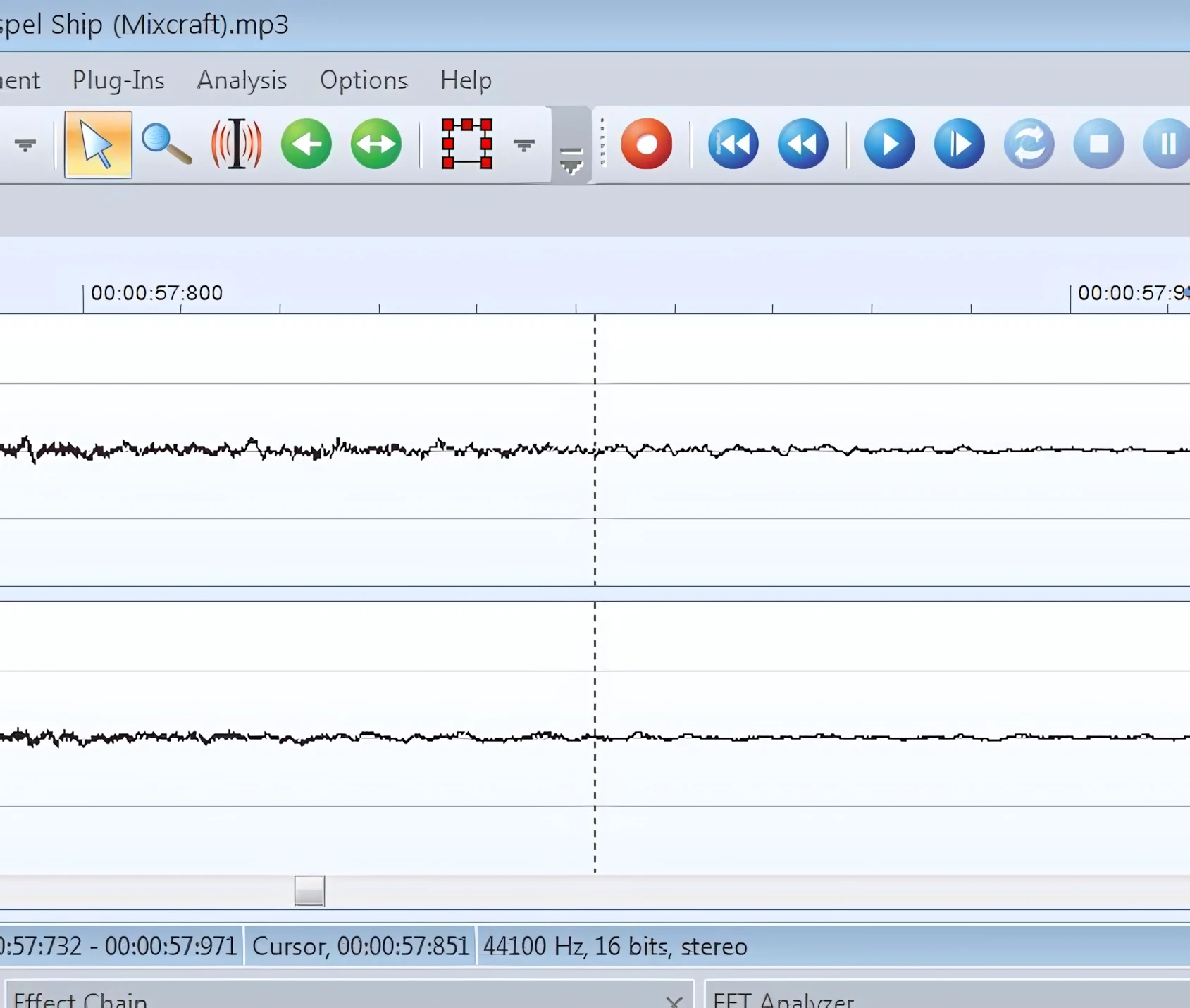
Click-dragging will highlight a portion of the waveform. Alternately, you can click on an insertion point and then “shift-click” a different insertion point; the waveform data in between these two points will be highlighted. Again, every mouse movement and GUI-related operation is extremely fast and responsive.
Browser, FX Chains and Analyzer Blocks:
The bottom portion of the default workspace contains three sub sections.
These being: File Browser, Effects Chain, and FFT Analyzer.
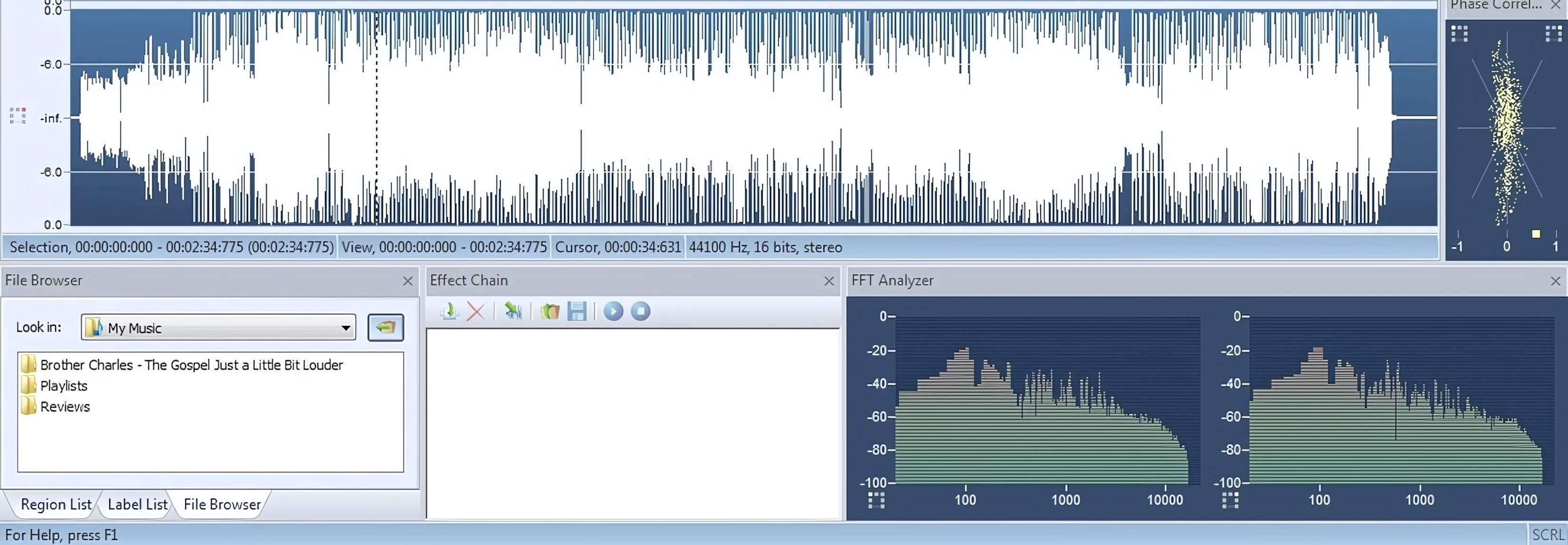
If you don’t actually need to keep these blocks in view, you can simply close the panels. This will dedicate the screen space to the waveform view, if necessary. To reopen these panels, go to the “View” file menu and re-enable them. Simple, eh?
All of the panels can be placed, or docked, wherever you want within the application’s work space. They can easily be placed on an extended desktop if you are employing a multi-monitor set up.
The level meters, phase correlation, and FFT Analyzer panels display their readings quickly, and by my observation, accurately.
Visuals – Wrap Up:
Overall, Acoustica 5’s interface is both attractive and functional. This reviewer did not take notice of anything that appeared to be disjointed or “patched in”. The workflow design is intuitive and becomes familiar very quickly. The actualization of each element and component bear semblance to one another, retaining visual cohesiveness throughout the GUI.

I have one GUI-related niggle that really should be mentioned: The knobs, sliders and dials tend to be too quick and somewhat quirky. As such, I found that clicking on the numeric fields and keying in my desired values was faster and easier — especially for the parameters represented with knobs.
Editing & Basic Usage:
Zoom, Zoom, Zooooom:
To get the ball rolling, let’s first take a look at the obvious: basic audio editing. (As a quick sidebar note, these features are common to all three editions of Acon’s Acoustica 5).
Thanks to the fast, smooth zoom control over a waveform, very precise insertion points, and waveform selections can be made. The default vertical zoom of 100% can be increased up to a whopping 5000 percent!
No Clicks:
I’m particularly impressed with the fact that volume adjustments do not result in annoying ‘clicks’ at the insertion points. With other audio editors that I have used, this has often NOT been the case.
For example, let’s say that an engineer would rather subdue sibilance on a vocal track by hand, rather than relying on a DeEsser plug-in. I’ve found that by carefully selecting the ‘ess’ segments, and lowering the volume of those segments, the integrity of a vocal track was retained without it suffering from annoying editing ‘clicks’.
In summary, my experiences of performing these same editing tasks with other audio editors (including those costing $300+) were not as successful. The unwanted ‘clicks’ anomaly became pronounced once processing (such as compression) was applied to the track. 5 STARS to Acoustica 5!
Time Display:
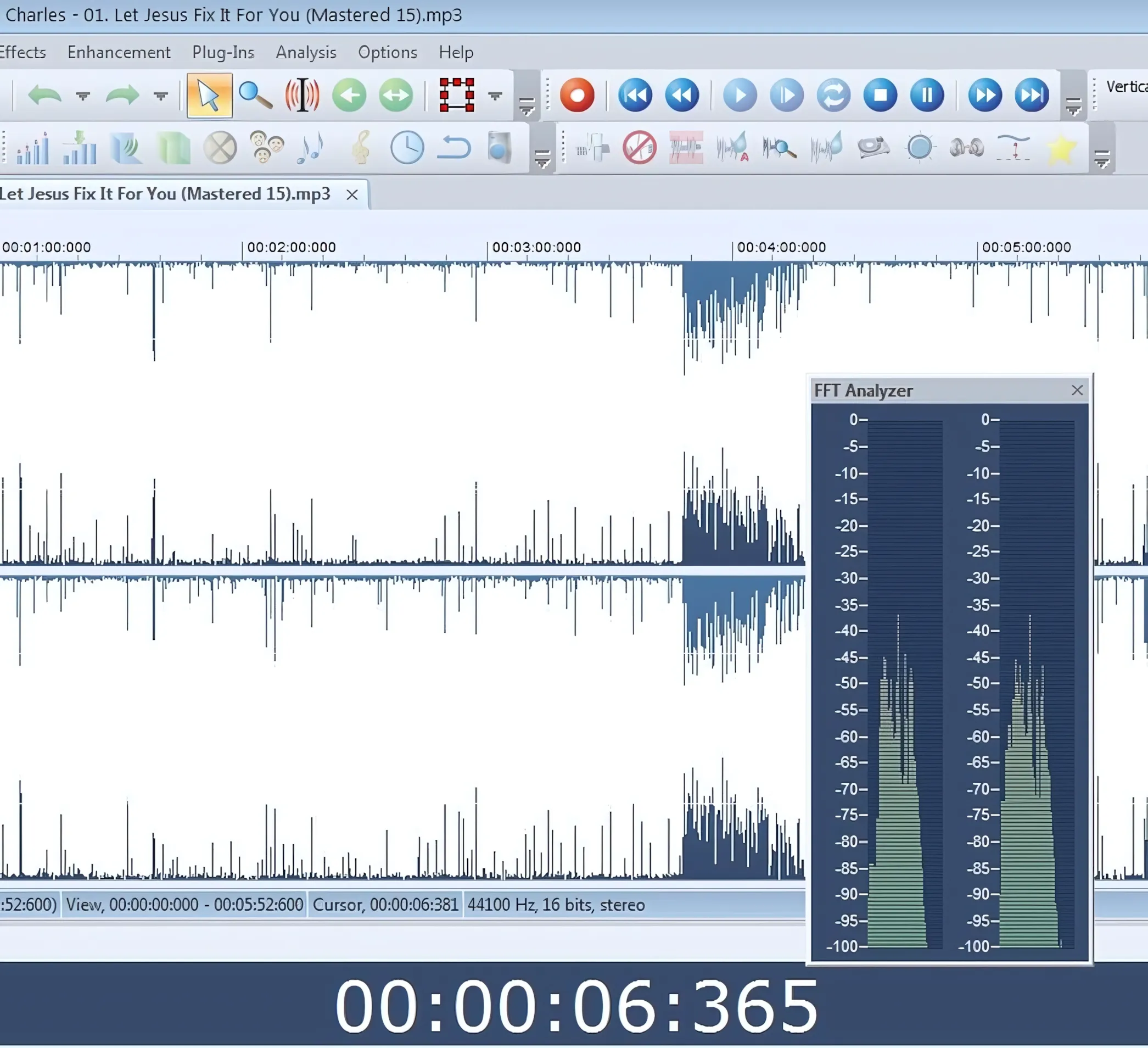
There are (4) types of playback/time display available. Depending on the type of project that you are working on, each of these four types can be very convenient and productive.
If for example, you are editing a video soundtrack, perhaps the “Hour:Minute:Second:Milisecond” format would make it easier to locate a portion of offensive language or unwanted background noise.
If you are used to working with a DAW in Beats/Measure view, then you can edit the file properties of the waveform loaded into Prem 5 and match the BPM and temp meter to that of your DAW project. (File->Edit Properties->Temp & Key). SMPTE and Sample Index are the two other choices of playback/time format.
Double-clicking anywhere on a waveform will select the entire audio clip. Once an entire clip has been selected, you can freely apply volume adjustments, normalizing, sample rate or bit depth conversion, and dynamics processing, and et cetera.
Of course, you can select any partial segment of an audio clip and apply any effect or process (built-in or external VST/DirectX) to just that region – without it affecting the unselected portion.
Plugins Management:
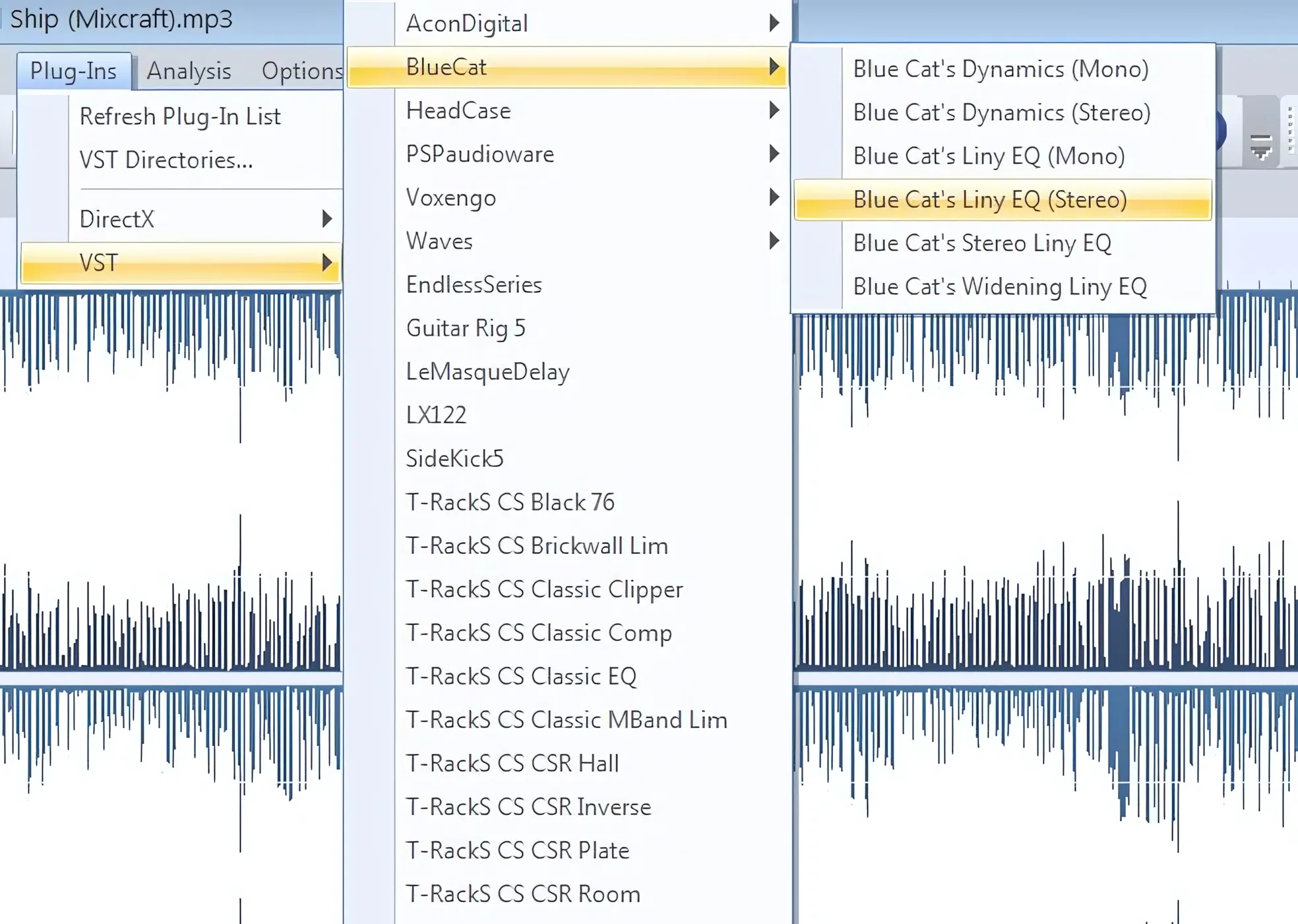
Acon’s Acoustica 5 (all three editions) gives you a super-simple means of choosing your VST and/or DirectX plug-in folders. Have you more than one plug-in folder? No worries – go ahead and add as many as you need to. Depending on the number of plug-ins on your system, the initial scanning might take a few minutes. After the plug-in folders have been scanned, Acoustica 5 lists them grouped and alphabetized.
Working with Regions:
You can easily create a “Region” by selecting a portion of the waveform, right-clicking on it, and choosing “Add Region Marker”. Each region can be used as a “track” if you are preparing a CD project.
For example, if you recorded last night’s performance as a single wav file, you could edit (cutting, deleting, volume fades, and etcetera) and save each song segment as a Region. Making sure that each region was titled appropriately, the entire wave could then be used to create a CD using the regions as tracks.
And yes, you can easily produce a “Live” CD without concerning yourself with pauses between the resultant tracks.
Blessings Come in Batches:
Well, in this case, they get exported in batches. . .
I remember back in my Wavelab 3.x days that the batch processing feature was just too cool. What a convenient time-saver it could be! If you have a selection of songs that you determine should all undergo the same processing, then batch processing is for you. Simply add the files that you want to be processed into the queue, add the intended effects (built-in or external), choose the processed file destination, et voila!

Leave a Reply